AI-powered tour guide companion for Microsoft Flight Simulator.
PhileasGo narrates points of interest as you fly, providing contextual information about landmarks, cities, and geographic features using AI-generated descriptions.
- AI Tour Guide: Generates context-aware, real-time briefings for landmarks using LLMs.
- Multi-Provider LLM Support: Supports Google Gemini, Groq, DeepSeek, Nvidia (free for development), and Perplexity for grounding.
- Regional Categories: Automatically discovers local high-interest categories based on your current location (e.g. "Alcázar" in Spain, "Mountain Pass" in the Alps). Redundant categories are automatically pruned if already covered by the static configuration.
- Terrain & Visibility Awareness: Uses ETOPO1 global elevation data for line-of-sight calculations. It's not perfect, because of the low resolution (to conserve resources), Phileas will occasionally point out landmarks hidden behind mountain ranges.
- Smart POI Prioritization: Weighs amount of available data, visibility, distance, novelty and other factors to pick good POIs. You can tune the weights for each category or add new categories.
- Immersive Audio: Supports Edge TTS (free/default), Azure Speech, and Fish Audio. Optional bandpass filter to simulate aviation headset/radio audio.
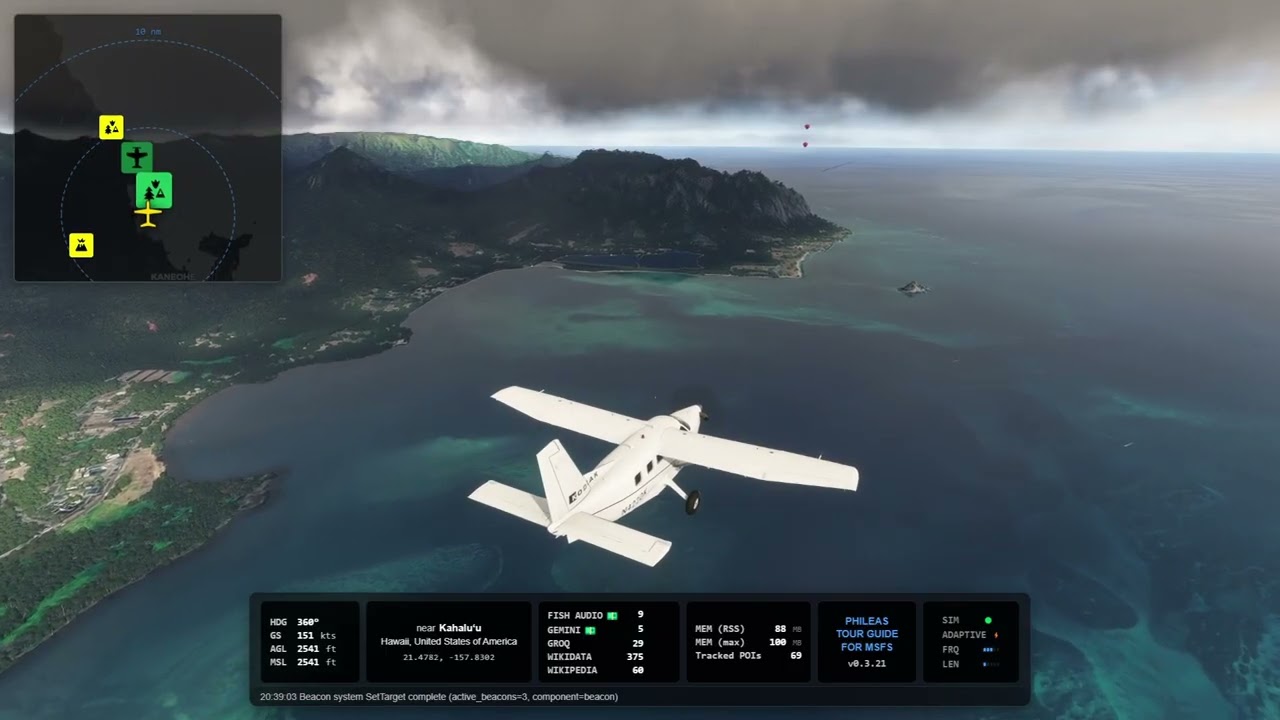
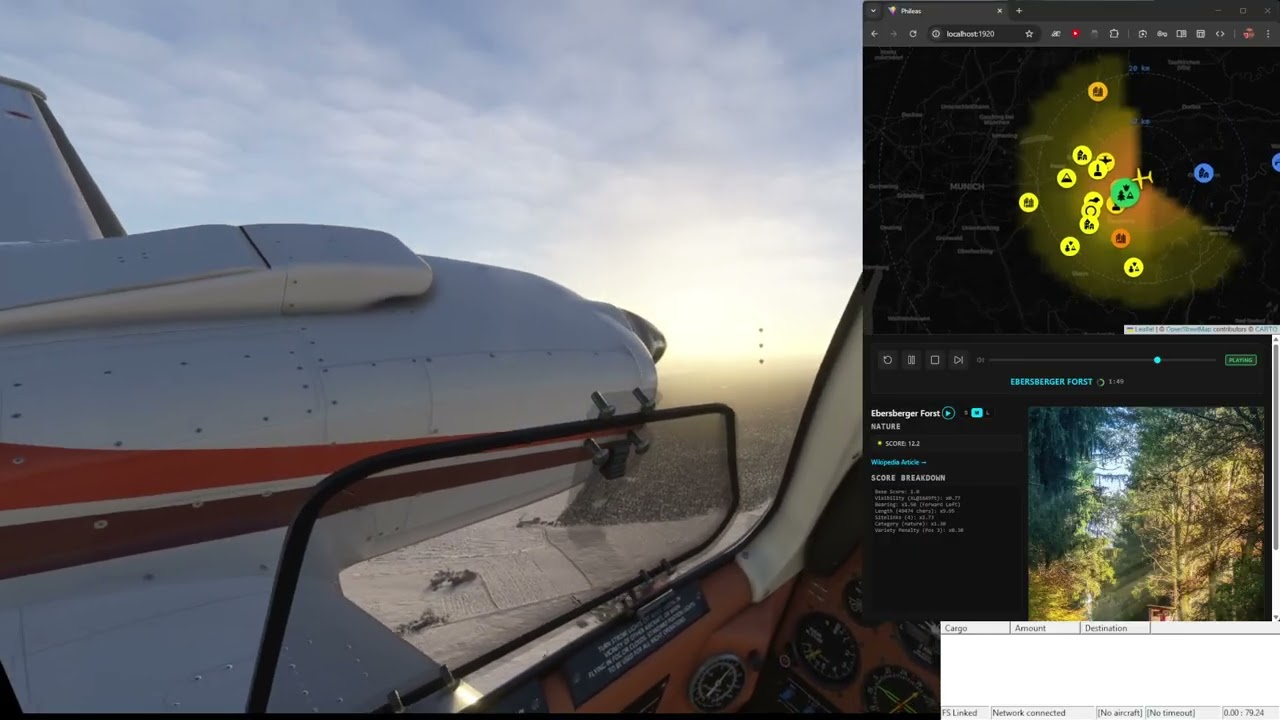
- User Interface: Comes with a headless server, a web UI, an experimental overlay for streaming, and a Windows app (a wrapper around the web UI) for easy import into VR.
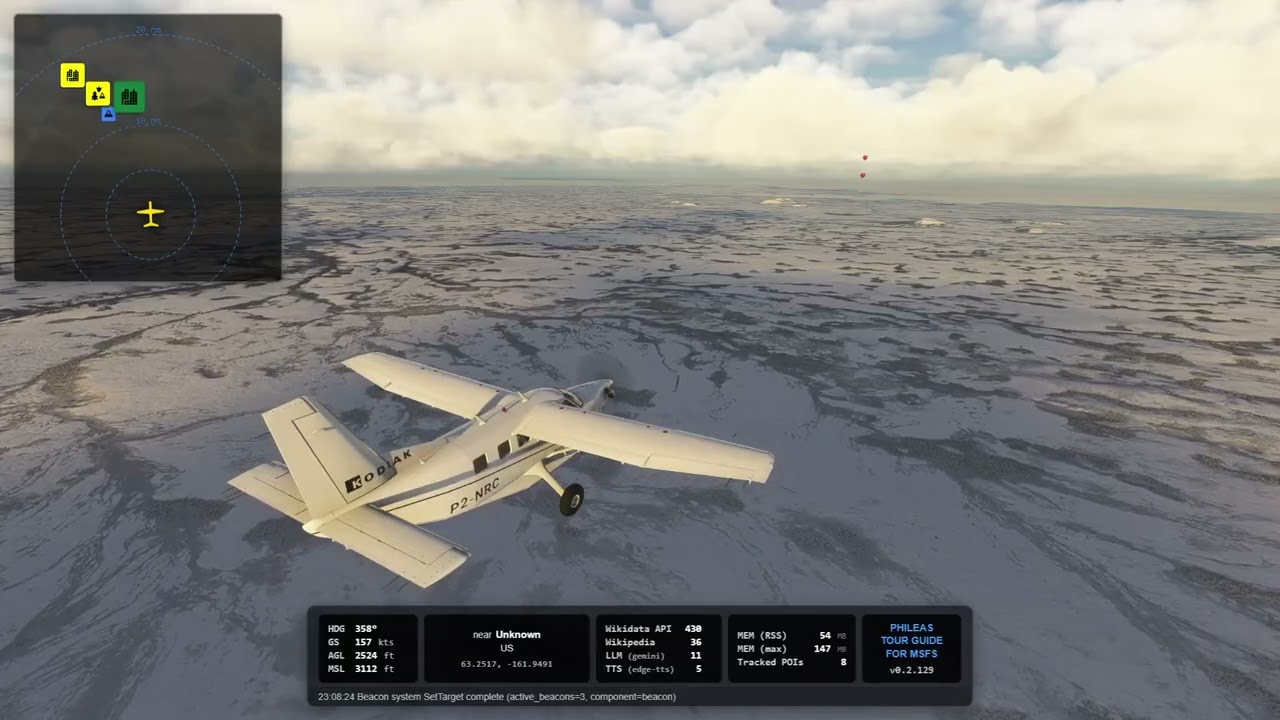
- Live map showing aircraft position and POIs around your aircraft.
- Trigger narrations manually or review nearby POIs.
- MSFS EFB Companion: An integrated Electronic Flight Bag application for MSFS 2024. Provides an immersive in-game interface for map tracking, POI lists, and status monitoring. See EFB Application for details.
- Visual Markers (VFR): Spawns in-sim balloons to help you visually identify a specific landmark. A formation of balloons travels with your aircraft pointing in the direction of the active POI. When you get close, the formation is replaced with a single balloon that sinks towards the POI. You will know which mountain or settlement the tour guide is talking about, if you want to see the castle the tour guide mentioned, just follow the balloons.
- As resource-friendly as possible: While Phileas gets a lot of data from Wikidata and Wikipedia, it tries to be responsible about it (it only gets the data it needs when it needs it, all responses are cached).
- Highly configurable: Most aspects of Phileas can be configured by editing yaml files, all the LLM prompts can be edited which allows for radically different experiences.
- Global Coverage: Does it work everywhere and anywhere? Well, kinda. The categorization system is based on the Wikidata hierarchy, which can be subject to interpretation. I do most of my flying in "western" countries, so that's what the categories are based on. In China, for example, a town might be (correctly) categorized as such, or it could be an "ethnic township" (which is not a subclass of "town"), a city might be a "county-level city" (which is not a subclass of "city"). The included "whatsaroundme" tool can help to identify missing categories.
- CAVEAT: This is an experimental, educational vibecoding project with a (most likely) limited lifespan. The code quality is probably mediocre at best, but I'm trying to make it as robust as possible without touching code myself (part of the experiment).
- Windows 10/11
- Microsoft Flight Simulator 2024
- One or more LLM API keys (combine a free tier with a paid tier to minimize costs while maximizing reliability)
- Azure TTS credentials (optional - Edge TTS works without configuration)
PhileasGo supports multiple LLM providers. You only need one of the following: Groq, Gemini, DeepSeek, Nvidia, or any OpenAI-compatible API (needs testing). Phileas can optionally make use of the Perplexity API for grounding.
If you have access to a paid tier from one provider, and a free tier from another provider, configure a fallback chain in configs/phileas.yaml (e.g., llm.fallback: ["groq", "gemini"]). Should you hit the quotas for the free tier, PhileasGo will use the next provider in the chain. This is particularly useful for Groq, which has a generous free tier but can be rate-limited during peak hours.
Note that, even with detailed prompts, different models produce radically different results when it comes to the script prose, so the fallback mechanism will result in your tour guide demonstrating... erm... rhetorical range.
- Support for MSFS2020 is missing. I only tested MSFS2024, and I'm pretty sure the balloons have a different name in MSFS2020, so the markers wouldn't work. Should be an easy fix if someone is interested.
- Download the latest release
- Extract to a folder of your choice
- Run the installation helper in PowerShell:
(alternatively, right-click install.ps1 and select "Run with PowerShell")
.\install.ps1
- Copy
.env.templateto.env.localand add your API keys (see below)
The install script will:
- Create necessary data and log directories
- Download and extract GeoNames city data
- Download and extract ETOPO1 global elevation data (for Line-of-Sight visibility)
- Prompt you to manually download and place MSFS POI data (Master.csv)
- Generate the default configuration file with default values (if missing)
- Optional: Install the EFB application to your MSFS Community folder (see below).
If you have the MSFS 2024 SDK installed, you can automatically build and install the EFB package:
- Open a terminal in the project root.
- Run:
make install-efb
This will build the EFB source, compile the MSFS package, and copy it to your Community folder. If you don't have the SDK, you can manually copy a pre-built package if available from the releases.
API keys are configured via environment variables in a .env.local or .env file:
# Copy the template
cp .env.template .env.local

# Edit .env.local with your keys
The .env.template file shows all available options:
# LLM Providers (you need at least one)
GEMINI_API_KEY=your_gemini_key_here
GROQ_API_KEY=your_groq_key_here
DEEPSEEK_API_KEY=your_deepseek_key_here
NVIDIA_API_KEY=your_nvidia_key_here # free for development
OPENAI_API_KEY=your_openai_key_here # untested

PERPLEXITY_API_KEY=your_perplexity_key_here # optional grounding

# TTS Providers (optional - Edge TTS works without keys)
FISH_API_KEY=
SPEECH_KEY=
SPEECH_REGION=Tip: Ask your favorite LLM about Groq's free tier.
PhileasGo is designed to be highly configurable. All configuration files are located in the configs/ directory.
Edit configs/phileas.yaml to configure system settings:
tts:
  engine: "edge-tts"  # Default, no additional config needed
  # options: "windows-sapi", "edge-tts", "fish-audio", "azure-speech"
TODO: it's poorly documented, because I feel that most of the settings should be moved to a better settings dialog. Work in progress.
You can tweak the behavior of the tour guide by modifying other files in configs/:
-
categories.yaml: Define which Wikidata categories are recognized.- Add new categories by mapping them to Wikidata QIDs.
- Adjust
weightto prioritize certain types of landmarks. - Change
size(S/M/L/XL) to determine from how far away a landmark is visible. - Customize
iconmappings for the web UI.
-
visibility.yaml: Controls when Phileas "sees" a landmark.- Defines the maximum visibility distance (in Nautical Miles) for each size category (S/M/L/XL) at different altitudes.
- Example: If you want "Large" landmarks to be visible from further away at 3000ft, increase the value in the table.
-
interests.yaml: A list of topics that the AI uses to gauge relevance.- Add or remove interests to steer the "flavor" of the tour guide (e.g., add "Architecture" or "Biology" if you want the AI to focus on those aspects).
-
essays.yaml: Configures the topics for longer, regional "essays".- When there are no immediate landmarks, Phileas talks about the region.
-
prompts/: Contains the raw system prompts sent to Google Gemini.narrator/script.tmpl: The main prompt used to generate landmark descriptions. You can edit this to change the personality, tone, or structure of the tour guide's narration.category/: Contains dynamic sub-prompts used when flying over specific types of landmarks (e.g.,city.tmplinstructs the LLM to search for local food and vibes,aerodrome.tmplinstructs the LLM to focus on aviation history).tts/fish-audio.tmpl: A special prompt optimized for a specific cloned voice. It instructs the LLM to use specific mannerisms, vocabulary, and rhetorical styles that align with that persona.common/: Defines the shared persona traits and values (Identity, Voice, Constraints, Situation). Edit these files if the tour guide's "politics" or worldview are not to your liking. They currently define a narrator who is critical of imperialism/authoritarianism and sides with the oppressed; you can adjust these instructions to match your preferred narrative neutrality or bias.
Note: If you want a configuration change in these files to take effect, you need to restart PhileasGUI.exe. You can do that mid-flight, Phileas remembers where you've been.
PhileasGo includes a native MSFS 2024 EFB application, providing an immersive in-cockpit experience.
- Interactive Bing Map: Live aircraft tracking and POI visualization directly on your tablet.
- Live Narrator Status: See precisely what the AI is talking about (Playing) or preparing to describe next (Preparing).
- Sim-Status Monitoring: Real-time feedback on connection status and simulator activity (ACTIVE/INACTIVE).
- POI Tracking: Access the list of nearby Points of Interest and Settlements without leaving the plane.
- Narration Pips: Visual indicators for Frequency and Length settings, allowing you to verify squawk-based configurations at a glance.
- Map: The primary navigation view with the visibility cone and POI markers.
- POIs: A detailed list of tracked Points of Interest sorted by distance.
- Cities: A list of nearby settlements, categorized by population and distance.
- System: Detailed API statistics and system diagnostics for the background service.
- Run
PhileasGUI.exebefore or after starting a flight in MSFS2024. - Enjoy the tour!
The web UI shows:
- Current flight telemetry
- Nearby points of interest
- Narration status and controls
Or use the Windows app:
PhileasGo can be controlled directly from your aircraft's transponder, allowing you to stay in the cockpit while adjusting settings.
- Squawk-Based Settings: Set your transponder to codes starting with
7to change settings on the fly:- Format:
7[Freq][Len][Boost] - Digit 1 (Frequency):
0(Pause),1-4(Narration frequency from Rarely to Hyperactive). - Digit 2 (Narrative Length):
1-5(Scale text length from Shortest to Longest). - Digit 3 (Visibility Boost):
1-5(Scale visibility range from 1.0x to 2.0x). - Example: Squawking
7231sets normal frequency, normal length, and no boost.7055pauses narration but sets max length and boost for when you resume.
- Format:
- IDENT Button: Pressing the transponder's IDENT button triggers a configurable action. Use
IdentActioninconfigs/phileas.yamlto set this toskip,stop,toggle_pause, ortoggle_beacon.- Note: The IDENT trigger works regardless of your squawk code, as long as the feature is enabled.
- Note: The IDENT button sends the IDENT signal for about twenty seconds. You shouldn't press it more than once every twenty seconds, until I have a clever idea how to handle this better.
For streaming: point the browser to http://localhost:1920/overlay for a transparent overlay. The elements can be turned on/off in configs/phileas.yaml.
Note: On your first flight, the Wikidata QID hierarchy cache table is populated. This will result in a high number of Wikidata API calls and is nothing to worry about. As long as your database (data/phileas.db) is present, we will rarely ask for any piece of information more than once. If you want to make it easier on Phileas, don't start your first flight in the middle of a metropolitan area. Note: On longer flights, the number of Wikidata requests can go into the thousands. This is normal. Phileas is asking Wikidata for the ids and some (cheap) metadata of all landmarks around and ahead of your aircraft, and it prefers to get that data in many small portions (with pauses between requests). You can visualize the tiles in PhileasGUI by enabling "Show Cache Layer".
Prerequisites:
- Go 1.21+
- Node.js 18+
- npm
- C Compiler (MinGW/GCC) (required for H3 CGO)
- MSFS SDK (required solely for SimConnect.dll)
# Install Go dependencies
go mod download

# Run tests
make test

# Build everything (web + Go binary)
make build

# Or build components separately:
make build-web   # Build web UI
make build-app # Build Go binaryI started this project to see how far I could get purely by vibecoding. I always wanted something like a tour guide for MSFS, I went so far as to talk Brian of SayIntentions into adding a "tour guide" feature to his product, but I wasn't happy with the result.
I vibecoded a series of three Python clients with growing complexity (and resource usage), and encountered the limits of current vibecoding tools (repeatedly). This fourth attempt in Go was meant to explore how a stricter language, a more structured codebase, and access to the Python proof-of-concept implementations would improve agents' abilities to manage the complexity.
It turned out so well that I'm releasing it as a public project (let's call it a "public backup"). I'm sure the code is not pretty (I don't actually code in Go, that was part of the experiment), but the resource usage is plausible and, at least for me, it appears to do what it's supposed to do. Also, while the agents try their hardest to violate my design any chance they get, I feel that the design I have in my head has really good elements and, sometimes, for a few versions, the implementation gets pretty close to that design.
I expect to be the only user for the foreseeable future, so I'll only put together a binary release when I'm happy with the current state. If you want, if you really, really want, you can always build it yourself.
This project is made possible by the incredible volume of open data provided by the Wikimedia Foundation. PhileasGo relies heavily on Wikidata for metadata and Wikipedia for descriptive content; without their contributors' tireless work, our tour guide would literally have nothing to say.
We also use GeoNames for city data and LittleNavMap MSFS POIs for MSFS-specific landmarks.
This project uses the Uber H3 geospatial indexing system. H3 is licensed under the Apache License 2.0.
Elevation data provided by ETOPO1 Global Relief Model from NOAA National Centers for Environmental Information. Citation: Amante, C. and B.W. Eakins, 2009. ETOPO1 1 Arc-Minute Global Relief Model: Procedures, Data Sources and Analysis. NOAA Technical Memorandum NESDIS NGDC-24. National Geophysical Data Center, NOAA. doi:10.7289/V5C8276M
Category icons provided by Mapbox Maki (CC0 1.0 Universal).
Made with Natural Earth. Free vector and raster map data @ naturalearthdata.com. Map tiles and data © OpenStreetMap contributors, © CARTO.
Map tiles by Stamen Design, under CC BY 3.0. We are grateful to the Cooper-Hewitt, National Design Museum for hosting the Stamen Watercolor tiles.
Hillshading provided by Stadia Maps and Stamen Design (Terrarium).
Vector data provided by OpenFreeMap, based on data by OpenStreetMap. Data by OpenStreetMap, under ODbL.
Icons by:
- cessna by Tinashe Mugayi from Noun Project (CC BY 3.0)
- Plane by ArashDesign from Noun Project (CC BY 3.0)
MIT License - see LICENSE file for details.