A modern, highly customizable interactive shell built from scratch in C++ with embedded Lua scripting. Combines low-level systems programming with dynamic configuration to create a powerful, personalized terminal experience.
- Syntax Highlighting - Commands are color-coded as you type (green for valid, red for invalid)
- Command History - Navigate previous commands with arrow keys, persists between sessions
- Custom Input Handler - Raw terminal mode with custom readline implementation for full input control
- Built-in Commands - Native implementations of
cd,pwd,echo,source, and more - Lua Configuration - Full customization through Lua scripting with live reload support
- Lua Getters - Retrieve current config values for dynamic, conditional theming logic
- Process Management - Custom output handling via Unix pipes for external commands
- True Color Support - 24-bit RGB color support for beautiful terminal themes
# Clone the repository
git clone https://github.com/YahiaJouini/ishell.git ~/.local/bin/ishell
cd ~/.local/bin/ishell

# Build the project
mkdir build && cd build
cmake ..
make -j$(nproc)

# Run it
./ishellAdd to your current shell's config file (~/.bashrc or ~/.zshrc):
alias ishell="$HOME/.local/bin/ishell/build/ishell"Reload your configuration:
source ~/.bashrc # or source ~/.zshrcNow launch iShell from anywhere:
ishellTo use iShell as your login shell:
# Add iShell to valid shells list
echo "$HOME/.local/bin/ishell/build/ishell" | sudo tee -a /etc/shells

# Set as your default shell
chsh -s "$HOME/.local/bin/ishell/build/ishell"
Log out and log back in for changes to take effect.
Note: You can always switch back to bash/zsh with:
chsh -s /bin/bash # or /bin/zsh- C++17 compatible compiler
- CMake 3.14 or higher
- Unix-like system (Linux, macOS, WSL)
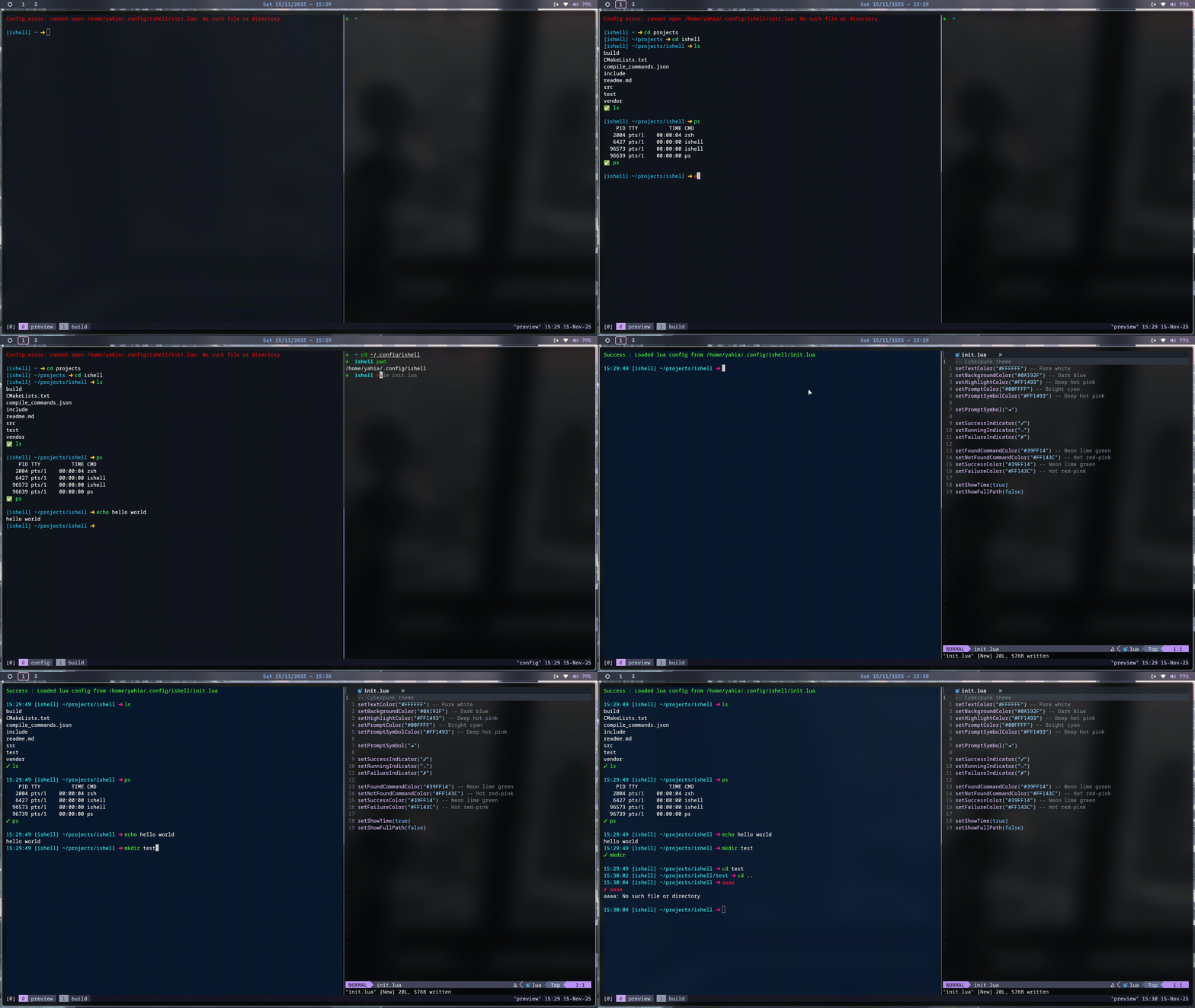
Syntax highlighting in action, command history navigation, and live config reloading with the source command
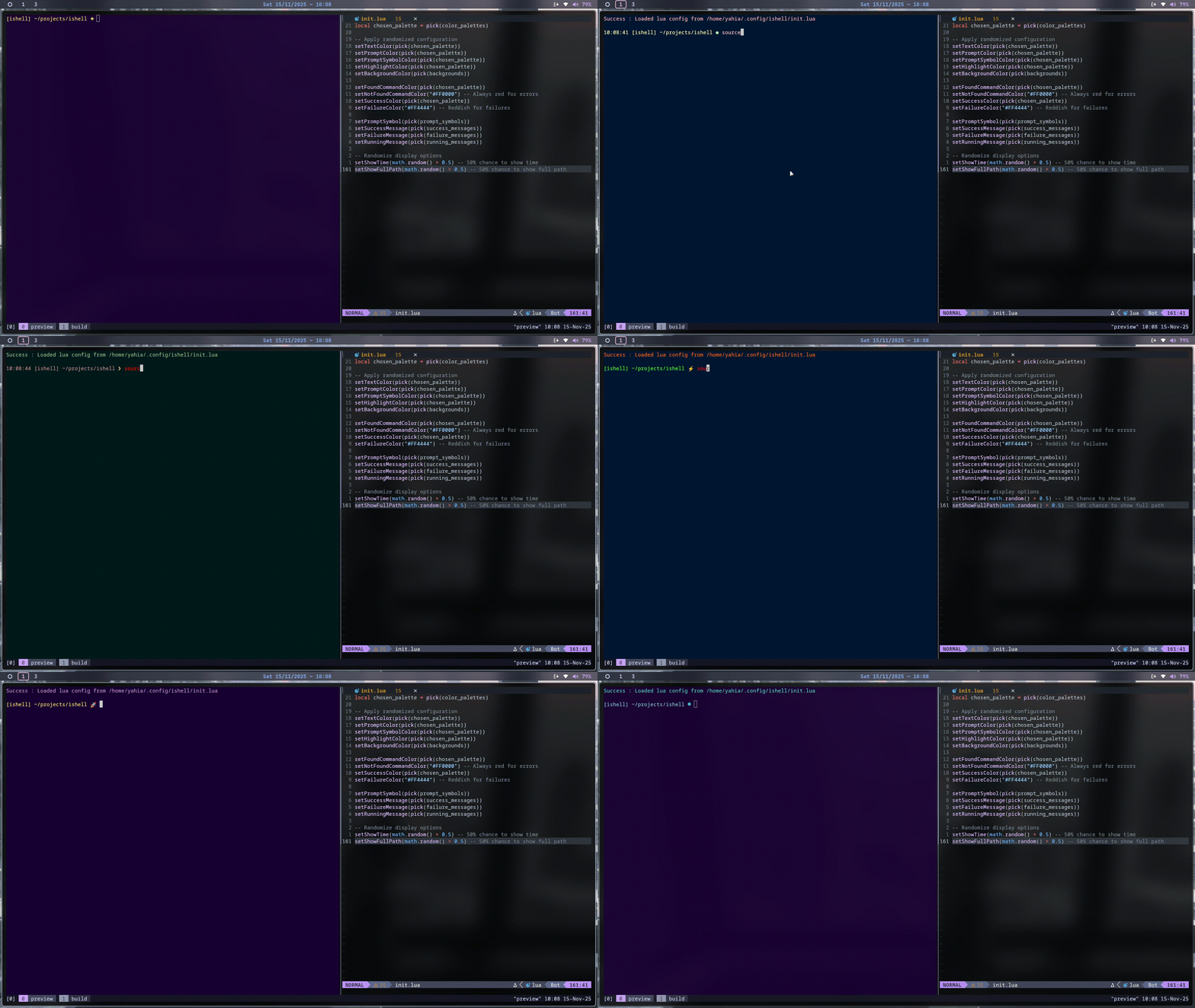
Lua scripting power - randomized themes that change every time you reload your config!
Commands are validated and colored in real-time by checking against:
- Built-in commands (
cd,pwd,mkdir,source,exit) - External commands (scanned from
$PATHdirectories at startup)
Colors are fully customizable via Lua configuration.
Use ↑ and ↓ arrow keys to navigate through previous commands.
iShell implements its own input handler instead of using the standard readline library:
- Raw terminal mode for direct character-by-character input control
- Custom cursor positioning with proper UTF-8 and emoji width handling
- Real-time syntax highlighting updates as you type
- Dynamic prompt rendering with full color and symbol customization
This custom implementation enables features like live syntax highlighting that wouldn't be possible with traditional readline.
iShell uses a parent-child process model for command execution:
- Parent process executes built-in commands directly to maintain shell state (e.g.,
cdchanges the shell's working directory) - Child process handles external commands via
fork()andexecvp() - Unix pipes (
pipe()) capture child process output and redirect it to the parent for custom formatting
This design ensures built-in commands can modify the shell's environment while external commands run in isolated processes.
$HOME/.config/ishell/init.lua
Create this file to customize your shell. Changes take effect immediately with the source command.
-- Colors (hex format: "#RRGGBB")
setTextColor(color)              -- Main text color
setBackgroundColor(color)        -- Terminal background
setPromptColor(color)            -- Prompt text color
setPromptSymbolColor(color)      -- Prompt symbol color
setHighlightColor(color)         -- Highlighted text color
setFoundCommandColor(color)      -- Valid command color
setNotFoundCommandColor(color)   -- Invalid command color
setSuccessColor(color)           -- Success message color
setFailureColor(color)           -- Error message color

-- Prompt Customization
setPromptSymbol(symbol)          -- Prompt symbol (e.g., "➜", "λ", "$")
setSuccessIndicator(message)     -- Success indicator
setFailureIndicator(message)     -- Failure indicator
setRunningIndicator(message)     -- Running indicator

-- Display Options
setShowTime(boolean)             -- Show/hide timestamp in prompt
setShowFullPath(boolean) -- Show full path vs current directory only-- Retrieve current configuration values
getTextColor() -- Returns current text color (ANSI)
getBackgroundColor() -- Returns current background color
getPromptColor() -- Returns current prompt color
getPromptSymbolColor() -- Returns prompt symbol color
getHighlightColor() -- Returns highlight color
getFoundCommandColor() -- Returns valid command color
getNotFoundCommandColor() -- Returns invalid command color
getSuccessColor() -- Returns success color
getFailureColor() -- Returns failure color
getPromptSymbol() -- Returns current prompt symbol
getSuccessIndicator() -- Returns success indicator
getFailureIndicator() -- Returns failure indicator
getRunningIndicator() -- Returns running indicator
getShowTime() -- Returns boolean
getShowFullPath() -- Returns booleanCreate ~/.config/ishell/init.lua:
-- Cyberpunk theme
setTextColor("#FFFFFF")              -- Pure white
setBackgroundColor("#0A192F")        -- Dark blue
setHighlightColor("#FF1493")         -- Deep hot pink
setPromptColor("#00FFFF")            -- Bright cyan
setPromptSymbolColor("#FF1493")      -- Deep hot pink

setPromptSymbol("➜")

setSuccessIndicator("✓")
setRunningIndicator("→")
setFailureIndicator("✗")

setFoundCommandColor("#39FF14")      -- Neon lime green
setNotFoundCommandColor("#FF143C")   -- Hot red-pink
setSuccessColor("#39FF14")           -- Neon lime green
setFailureColor("#FF143C")           -- Hot red-pink

setShowTime(false)
setShowFullPath(false)
Apply your configuration:
sourceWant a different look every time? Here's how Lua's power enables smart, dynamic configurations:
-- Fun randomized shell configuration!
-- Each time you source, you get a different look

math.randomseed(os.time())

local function pick(list)
    return list[math.random(#list)]
end

-- Color palettes
local vibrant_colors = {
    "#FF6B6B", "#4ECDC4", "#45B7D1", "#FFA07A",
    "#98D8C8", "#F7DC6F", "#BB8FCE", "#85C1E2"
}

local pastel_colors = {
    "#FFB3BA", "#BAFFC9", "#BAE1FF", "#FFFFBA",
    "#FFD9BA", "#E0BBE4", "#C4E7D4", "#FEC8D8"
}

local neon_colors = {
    "#39FF14", "#FF073A", "#00FFFF", "#FF00FF",
    "#FFFF00", "#FF6600", "#00FF00", "#FF1493"
}

local earth_tones = {
    "#8B4513", "#D2691E", "#CD853F", "#DEB887",
    "#F4A460", "#BC8F8F", "#A0522D", "#8FBC8F"
}

local cyberpunk = {
    "#00FF41", "#FF2079", "#00D9FF", "#FF00FF",
    "#FFFF00", "#FF6EC7", "#39FF14", "#FF073A"
}

local backgrounds = {
    "#001a33", "#1a0033", "#001a1a", "#0d001a", "#00331a",
    "#1a0d00", "#330019", "#001933", "#1a1a00", "#00261a"
}

local prompt_symbols = {
    "λ", "❯", "→", "▶", "»", "⟩", "➜",
    "✦", "●", "◆", "☞", "⚡", "🚀", "⬢"
}

local success_indicators = {
    "✓ Done!", "✨ Success!", "🎉 Nice!", "👍 Good!",
    "⚡ Completed!", "✔ OK!", "🌟 Perfect!", "🎯 Hit!"
}

local failure_indicators = {
    "✗ Failed", "💥 Error", "⚠ Oops", "❌ Nope",
    "💔 Failed", "⛔ Error", "🚫 Failed", "😞 Oh no"
}

local running_indicators = {
    "⟳ Running...", "⚙ Working...", "🔄 Processing...",
    "⏳ Executing...", "🏃 Running...", "💫 Working..."
}

-- Pick random palette
local color_palettes = {
    vibrant_colors, pastel_colors, neon_colors,
    earth_tones, cyberpunk
}
local chosen_palette = pick(color_palettes)

-- Apply randomized colors
local text_color = pick(chosen_palette)
setTextColor(text_color)

-- Use getters to ensure prompt color differs from text color
local prompt_color = pick(chosen_palette)
while prompt_color == text_color do
    prompt_color = pick(chosen_palette)
end
setPromptColor(prompt_color)

setPromptSymbolColor(pick(chosen_palette))
setHighlightColor(pick(chosen_palette))
setBackgroundColor(pick(backgrounds))

setFoundCommandColor(pick(chosen_palette))
setNotFoundCommandColor("#FF0000")
setSuccessColor(pick(chosen_palette))
setFailureColor("#FF4444")

-- Use getters to avoid repeating the same prompt symbol
local new_symbol = pick(prompt_symbols)
while new_symbol == getPromptSymbol() do
    new_symbol = pick(prompt_symbols)
end
setPromptSymbol(new_symbol)

setSuccessIndicator(pick(success_indicators))
setFailureIndicator(pick(failure_indicators))
setRunningIndicator(pick(running_indicators))

-- Toggle display options using getters
setShowTime(not getShowTime())
setShowFullPath(not getShowFullPath())

print("\n🎨 Theme randomized!\n")
This example showcases Lua's capabilities:
- Functions and loops for logic
- Random number generation for variety
- Getters to read current state and make smart decisions (avoid duplicate colors/symbols, toggle booleans)
Every source gives you a fresh new theme!
| Command | Description |
|---|---|
cd <path> |
Change directory |
pwd |
Print working directory |
mkdir <name> |
Create a new directory |
source |
Load Lua configuration (defaults to ~/.config/ishell/init.lua) |
echo <text> |
Print the given text to the shell |
exit |
Exit the shell |
All other commands are executed as external programs via fork() and execvp().
iShell embeds Lua 5.4 and exposes C++ configuration functions as Lua callbacks through the Lua C API. When you call setTextColor("#FF0000") in Lua:
- Lua invokes the registered C callback function
- The callback extracts the hex string from Lua's stack
- Validates the hex format (must be
#RRGGBB) - Converts hex to ANSI escape sequences (
\033[38;2;R;G;Bm) - Updates the shell's internal configuration singleton
This creates a bidirectional bridge: Lua can call C++ functions (setters) and C++ can return values to Lua (getters). Users get simple, readable configuration files while the shell maintains type safety and performance.
Comprehensive validation in the Lua API:
- Hex colors must be valid 6-character format
- Boolean functions enforce type checking
- String fields reject empty values
- Errors display with exact line numbers and clear messages
At startup, iShell scans all directories in $PATH using opendir() and readdir(), checking each file with access(path, X_OK) to verify executability. Valid commands are cached in an unordered_set for O(1) lookup during typing.
Contributions welcome! Feel free to:
- Report bugs or request features via GitHub Issues
- Submit pull requests
- Share your custom themes and configs
Built with C++ and Lua • Report Bug • Request Feature