A real-time zero-shot image classification and object recognition application using OpenAI's CLIP model with Hailo AI acceleration.
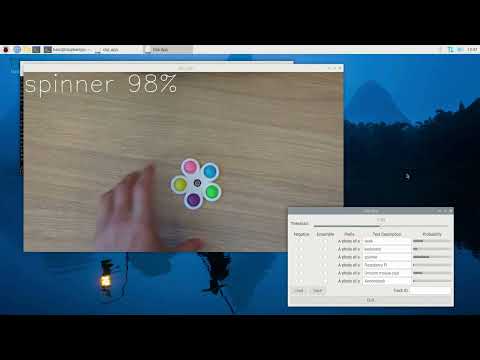
The CLIP application demonstrates zero-shot learning capabilities by matching visual content to text descriptions without task-specific training. You can define custom text prompts at runtime, and the system will identify matching objects or scenes in real-time video streams.
Key Features:
- Zero-shot classification - No training required for new categories
- Runtime text prompts - Define and modify search terms on-the-fly
- Multiple detection modes - Person detection, face detection, or direct image analysis
- Interactive GUI - Visual threshold control and confidence visualization
- Persistent embeddings - Save and load text prompt configurations
The scripts to generate the tokenizer, token embedding LUT, and text projection matrix are no longer included in this repository.
You must obtain the following files yourself and place them in the setup/ directory:
clip_tokenizer.json(CLIP tokenizer)token_embedding_lut.npy(Token embedding lookup table)text_projection.npy(Text projection matrix)
Refer to the official OpenAI CLIP and HuggingFace documentation for instructions on how to generate or download these files:
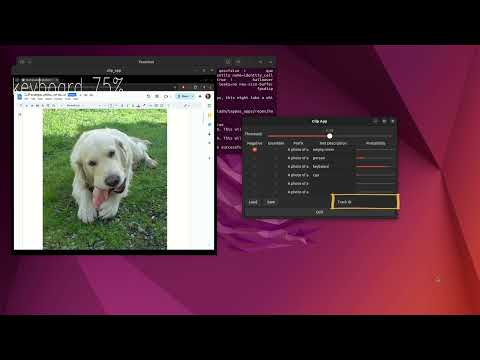
Default mode (direct CLIP inference on full frames):
hailo-clipTo close the application, press Ctrl+C or click the "Quit" button in the GUI.
- Uses pre-configured text embeddings from
example_embeddings.json - Processes entire video frames
- Ideal for scene classification
Note: export DISPLAY=:0 is required when working headless.
With person detection:
hailo-clip --detector person- Detects persons first, then classifies cropped regions
- Useful for identifying people by description (e.g., "person wearing red shirt")
With face detection:
hailo-clip --detector face- Detects faces first, then classifies facial regions
- Can identify attributes like "smiling person", "person with glasses"
With custom embeddings file:
hailo-clip --json-path my_custom_embeddings.json- Loads text prompts from a custom JSON file
- Falls back to empty embeddings if file doesn't exist
With live camera input:
hailo-clip --input rpi --detector person- Uses Raspberry Pi camera
- Combines person detection with CLIP classification
Custom video with runtime prompts disabled:
hailo-clip --input /path/to/video.mp4 --disable-runtime-prompts- Faster initialization (no CLIP text encoder loading)
- Uses only pre-saved embeddings from JSON file
Adjust detection threshold:
hailo-clip --detection-threshold 0.7 --detector face- Higher threshold = stricter matching
- Lower threshold = more permissive matching
- Default: 0.5
USB camera with custom JSON:
hailo-clip --input usb --json-path office_objects.json --detector none- Direct CLIP on USB camera feed
- Uses custom object descriptions
The CLIP pipeline operates in several stages depending on the detection mode:
Mode 1: Direct CLIP (--detector none)
Source → CLIP Inference → Matching → Display
Mode 2: Detection + CLIP (--detector person/face)
Source → Detector → Tracker → Cropper → CLIP → Matching → Display
-
Image Encoding (Real-time on Hailo):
- Video frames (or cropped regions) are encoded into 640-dimensional embeddings
- Embeddings capture semantic visual features
- Normalized for comparison with text embeddings
-
Text Encoding (Pre-computed on CPU):
- Text prompts are encoded into the same 640-dimensional space
- Can use ensemble templates for robustness (e.g., "a photo of a {}", "a picture of a {}")
- Embeddings are saved to JSON for reuse
-
Similarity Matching:
- Dot product between image and text embeddings
- Softmax normalization to get probabilities
- Best match selected if above threshold
-
Result Visualization:
- Matched labels displayed on video
- Confidence scores shown in GUI progress bars
- Track-specific focusing available for multi-object scenarios
--detector none (Default)
- Processes entire video frames
- Best for: scene classification, general object recognition
- Example prompts: "office room", "outdoor park", "kitchen"
--detector person
- First detects people using YOLOv8
- Crops and tracks each person
- Then classifies cropped regions
- Best for: person identification by clothing/attributes
- Example prompts: "person in blue shirt", "person carrying backpack"
--detector face
- First detects faces using YOLOv8
- Crops and tracks each face
- Then classifies facial regions
- Best for: facial attributes, expressions
- Example prompts: "smiling person", "person with beard", "person with glasses"
The application includes a GTK-based control panel:
- Threshold Slider: Adjust matching sensitivity (0.0 to 1.0)
- Text Entries: Define up to 6 text prompts
- Negative Checkbox: Mark prompts as negative examples (for contrast)
- Ensemble Checkbox: Use multiple template variations for robustness
- Probability Bars: Real-time confidence visualization
- Track ID: Focus confidence display on specific tracked object
- Load/Save Buttons: Manage embedding configurations
- Quit Button: Exit application gracefully
Positive vs Negative Prompts:
- Positive prompts: Objects/attributes you want to find
- Negative prompts: Provide contrast to improve discrimination
- Example: Positive="red car", Negative="blue car"
Ensemble Mode: When enabled, uses multiple template variations:
- "a photo of a {text}"
- "a photo of the {text}"
- "a photo of my {text}"
- "a photo of a big {text}"
- "a photo of a small {text}"
This improves robustness but requires re-encoding.
Text Prefix: All prompts are prefixed with "A photo of a " by default. This can be changed in the JSON file.
{
  "threshold": 0.5,
  "text_prefix": "A photo of a ",
  "ensemble_template": [
    "a photo of a {}.",
    "a photo of the {}."
  ],
  "entries": [
    {
      "text": "cat",
      "embedding": [0.024, -0.063, ...],
      "negative": false,
      "ensemble": false
    },
    {
      "text": "dog",
      "embedding": [0.013, -0.046, ...],
      "negative": true,
      "ensemble": false
    }
  ]
}Using the standalone tool:
# From interactive shell
python text_image_matcher.py --interactive --output my_embeddings.json

# From command line
python text_image_matcher.py --texts-list "cat" "dog" "bird" --output animals.json

# From JSON config
python text_image_matcher.py --texts-json prompts_config.json --output embeddings.json
prompts_config.json example:
{
  "positive": ["red car", "sports car"],
  "negative": ["blue car", "truck"]
}
Using the GUI:
- Run the application with
--disable-runtime-promptsinitially disabled - Enter text prompts in the GUI
- Click "Save" to export embeddings
- Next time, use
--disable-runtime-promptsfor faster startup
The application includes two example files that are generated during initial setup:
embeddings.json: Main embeddings (desk, keyboard, spinner, Raspberry Pi, Unicorn mouse pad, Xenomorph)example_embeddings.json: Example embeddings (cat, dog, person, car, tree, building)
Both files are created by running:
cd setup
python3 build_sample_embeddings_json.py| Argument | Description | Default |
|---|---|---|
--detector, -d |
Detection mode: person, face, or none |
none |
--json-path |
Path to JSON embeddings file | example_embeddings.json |
--detection-threshold |
Similarity threshold for matching (0.0-1.0) | 0.5 |
--disable-runtime-prompts |
Skip CLIP text encoder initialization | False |
All standard arguments from the main documentation are supported:
--input- Video source (file path,rpi,usb)--arch- Hailo architecture (hailo8,hailo8l,hailo10h)--disable-sync- Run at maximum speed--dump-dot- Generate pipeline diagram- And more...
The application uses batching for efficiency:
- Detection batch size: 2
- CLIP batch size: 2
Pipeline elements are prioritized for optimal performance:
- Detection: Priority 31 (high)
- CLIP: Priority 16 (medium)
- Text embeddings are cached and reused
- Image embeddings are computed on-the-fly
- Tracker maintains past metadata for consistency
Issue: "No model is loaded" error
- Solution: Make sure PyTorch and CLIP are installed
- Try:
pip install torch torchvisionandpip install git+https://github.com/openai/CLIP.git
Issue: Low matching confidence
- Solution: Adjust
--detection-thresholdto a lower value - Try: More specific or descriptive text prompts
- Try: Enable ensemble mode for better robustness
Issue: Slow startup with runtime prompts
- Solution: Pre-compute embeddings and use
--disable-runtime-prompts - This skips CLIP text encoder initialization
Issue: GUI not responding
- Solution: Ensure GTK3 is installed:
sudo apt-get install python3-gi - Check X11 forwarding if using SSH:
ssh -X user@host
Issue: Detection mode not finding objects
- Solution: Verify the detector is appropriate for your content
- Try: Different detection modes (
person,face,none) - Try: Adjust detection confidence in the underlying YOLOv8 config
| Component | Model | Input Size | Purpose |
|---|---|---|---|
| Detection | YOLOv8n-personface | 480×640 | Person/face detection |
| CLIP Image | CLIP ResNet-50x4 | 640×640 | Visual feature extraction |
| CLIP Text | CLIP ResNet-50x4 Text | N/A | Text encoding (CPU) |
- Detection:
yolov8n_personfacefunction - CLIP:
filterfunction (normalization) - Cropping:
person_cropper,face_cropper, orobject_cropper
Uses HailoTracker with:
- Class-specific filtering (person=1, face=2, or all=0)
- Past metadata retention for temporal consistency
- Unique ID assignment for multi-object scenarios
Retail & Inventory:
- "empty shelf", "stocked shelf", "product display"
Security & Surveillance:
- "person in uniform", "person carrying bag", "vehicle parked"
Smart Home:
- "person cooking", "person reading", "dog on couch"
Content Moderation:
- "inappropriate content", "safe content" (with appropriate negative prompts)
Accessibility:
- Scene descriptions for visually impaired users
- Real-time environment understanding
- CLIP Paper: Learning Transferable Visual Models From Natural Language Supervision
- Hailo Model Zoo: CLIP Models
- OpenAI CLIP: GitHub Repository
- Developer Guide: See main documentation for application development details